Home
Home opens with a greeting and one line on what is waiting for you: cards overdue, due today, mentions you have not read, and cards of yours that hold somebody else up.
Next up is the list of what to pick up next, across every space. It holds your open cards, plus any card due within a week that nobody is on in a space you work in, ranked by what makes each one pressing. Every card says why it is there, two reasons at a glance and all of them behind the (i):
| Reason | Counts for |
|---|---|
| Overdue | the most, more for every day late |
| Due today, tomorrow, within the week | less the further away |
| Urgent, High, Medium priority | a card's priority |
| A mention waiting on you | an unread mention of you on the card |
| Blocks another card | other people's open cards it holds up, more if one of them is late |
| A goal off track or at risk | the goal it serves is in trouble |
| In progress, In review | work already started finishes first |
| Untouched for a week | in progress but nobody has moved it |
| Nobody on it | a dated card with no assignee, slightly lower |
A card that waits on another card is not ranked: it sits under Waiting on other cards, saying what it waits on. The list follows changes as they happen.
Below it, Home has more panels, each with an (i) that says what it shows:
- Goals: how your goals stand, and the ones that need a look.
- Falling behind: in the spaces you work in, whoever holds them, cards past their due date, cards in progress that nobody has moved for a week, and goals still in flight past their target date.
- Needs your attention: what colleagues did this week on cards you hold, created or have commented on, one line per card. Your own changes and mentions (which Next up ranks) are left out.
- Document updates: pages somebody else changed in the last two weeks that you own, have commented on or are named in, with the number of open comment threads on pages you own.
- Where you left off (off by default): the cards you changed last.
- Spaces: every space, favourites first.
Make Home your own
Customize at the top of Home opens a list of the panels beside it. Drag them into the order you want (or pick one up with Space and move it with the arrow keys), switch off the ones you do not need, and make a panel wide to give it the whole row. Home changes as you go, and the layout is saved on your account, so it is the same in every browser. Next up can move but not be switched off. Reset to the default layout puts everything back. A panel added to Acta later appears in its default place, even on a Home you have customised.
Priority
A card can be Urgent, High, Medium or Low, or have no priority, which is most cards. Set it from the card's Priority field. Urgent and High show on the card on a board, the Table view has a sortable Priority column, and Next up ranks by it.
Spaces
The space you are in has its own group in the sidebar, headed with its name: its views (Board, Table, Calendar, Timeline, Sequence, Response times), then Settings, always last. That group is how you move between the views. On a phone, where the sidebar is a drawer, the views are also tabs above the board. Spaces, under the workspace's own entries, opens the list of every space to switch to another, and Home lists them too.
The trail at the top of the page switches as well. The space's name in it has a small up and down arrow: it lists the other spaces, with a search box, and picking one opens the same page there, the same view of the board or the same tab of Settings. A goal's page does the same for goals. On a phone only the last step of the trail shows, and it still switches.
A space can have an icon, a picture shown beside its name in the sidebar and in the trail. A workspace admin sets it at the top of the space's Settings: click or drop an image on the picture (PNG, JPEG, GIF, WebP, AVIF or SVG, up to 1 MB), and remove it with the trash icon on its corner. Without one, a space is its name alone, and the spaces list shows its initials when other spaces have icons, so the names still line up.
A space's Settings hold everything that is configured per space, in three tabs:
- General: its icon, name and description, its lists (rename, reorder by dragging, change what a list means, add one, archive an empty one), how long done cards stay on the board, and archiving or deleting it. The key is shown there but does not change, because every card key and every link to a card is made from it. These are the same things an agent can change with the
space_writetool. - Labels: the label groups made for this space alone, with their labels. Groups every space shares are in workspace Settings.
- Automation: what files cards into this space. Its ingest endpoints, its GitHub connections, and its rules: a rule whose condition names this space, or one that moves cards into it from anywhere.
Archiving takes a space out of the sidebar and Home with everything in it kept, and Archived spaces at the foot of Home's Spaces panel brings it back. Deleting a space is for admins and cannot be undone. An empty space can be deleted straight from its Settings or its ⋯ menu at the top right of the board. A space with cards is archived first, then deleted from Archived spaces, where the confirmation says how many cards go with it. Pages filed under a deleted space are kept.
Views
A space can be read five ways, and reported on in a sixth. They are the same cards, not five feature sets.
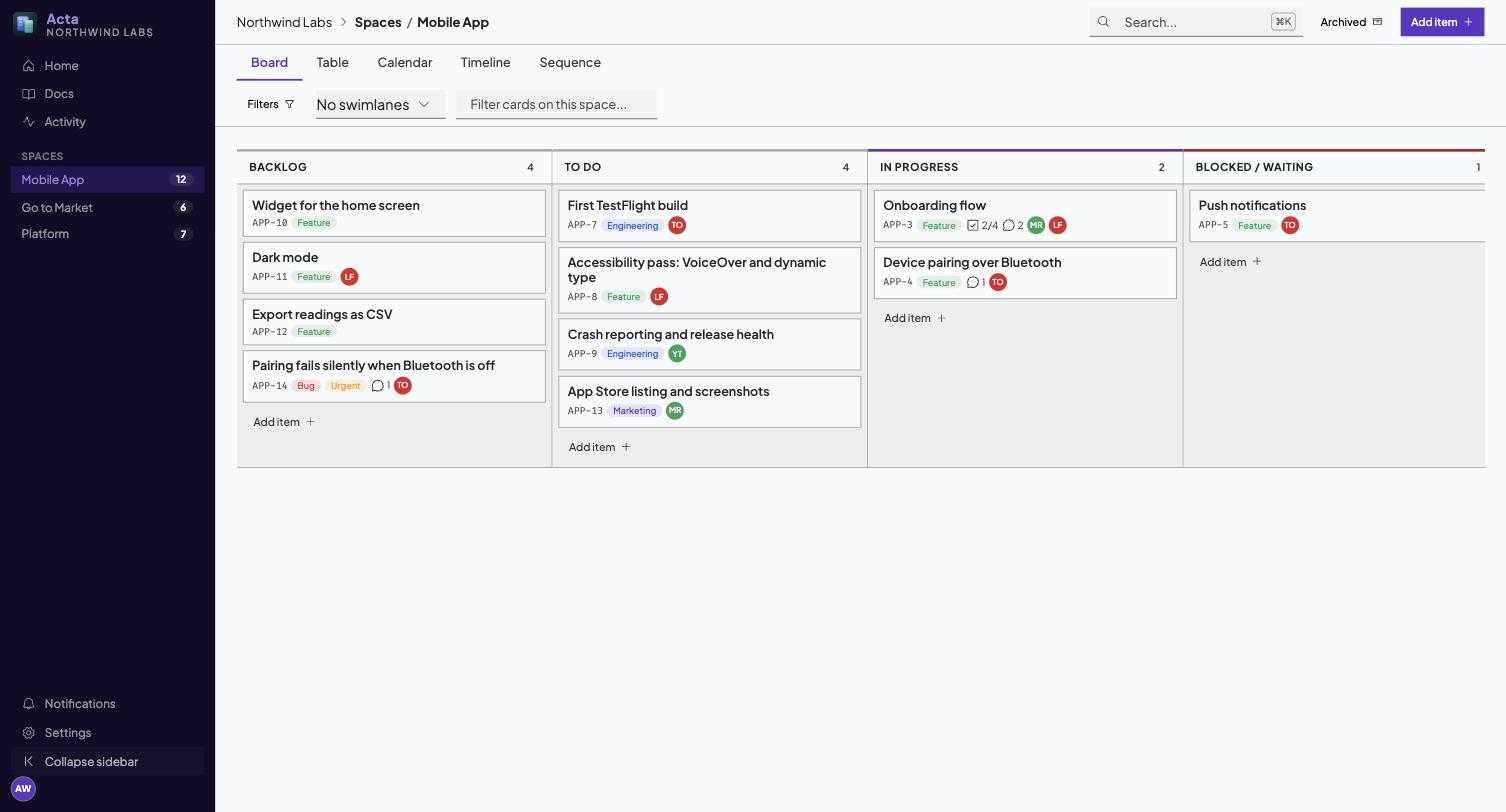
Board is the default: lists as columns, cards in them, drag to move. Column headers stay put as you scroll. Swimlanes split the board into horizontal bands by assignee, label or status, which is how you see that one person holds nine of the twelve in-progress cards.
Table is the one to use when you want to compare rather than move: sortable columns, every field visible at once.
Calendar places cards with due dates. Timeline draws them as bars. Cards without dates do not appear in either, which is most of them in most projects, and is why the fifth view exists.
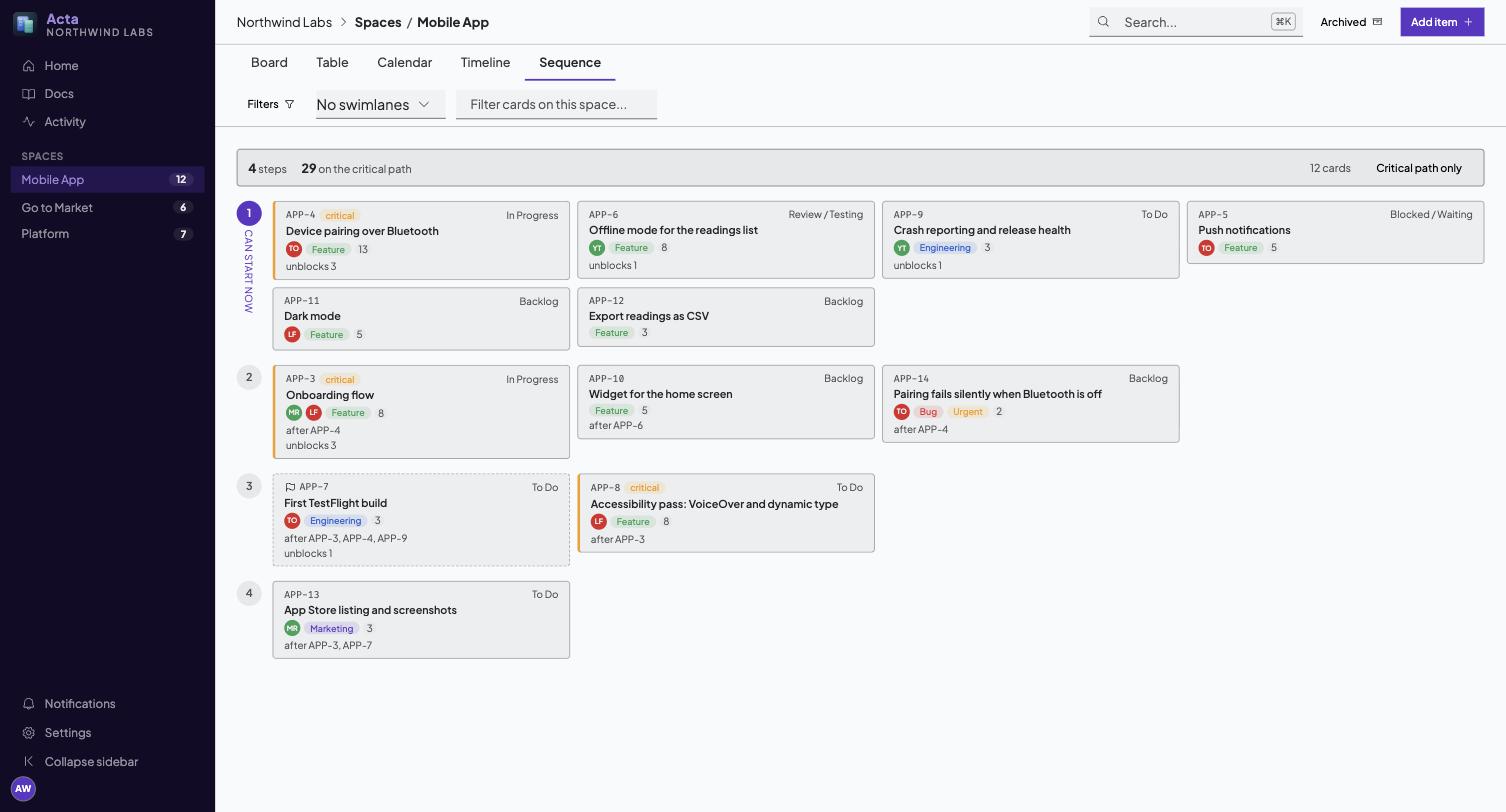
Sequence draws the plan as an order rather than as dates. It reads top to bottom in numbered steps: everything in step 1 can start now, everything in step 2 waits on step 1, and so on. The critical path is highlighted: the longest chain by size, the one where a slip slips the whole finish. Critical path only filters to it.
Sequence is computed from dependencies you declare, not guessed. If nothing declares a dependency, everything is in step 1, which is correct and not very useful.
Response times
Response times is not a view of the cards but a report on them: how long people waited. Pick this week, last week or the last 30 days. The first row is the whole space, and every label on its cards gets a row of its own, so Need: Bug report can be read on its own.
- Received is the cards created in the period, and Waiting is those of them nobody had answered by the end of it.
- First response is how long until the first comment, move to another list, completion or reopening by a person other than whoever created the card. Agents and automations never count: a contact form filing a card, a rule moving it or an assistant commenting on it is not somebody answering. Moving a card up or down inside its list is not a move.
- Resolution is how long until the card reached a done list or was completed. A card that was reopened counts from its creation to the last time it was resolved. A card created straight into a done list has none.
Each shows the median, the 90th percentile (P90: nine in ten were quicker) and how many cards it is measured over. A card counts in the period its response or resolution happened in, judged on what had happened by the end of that period, so last week reads the same whenever you look. Times are calendar time, not working hours, and labels are the ones the cards carry now.
The same numbers are available to an agent through the response_times tool.
Cards
On a board
Every card on a board has the same six rows, in the same order, so the same fact is always in the same place:
- Header: the card's key, the card it is part of, and on the right whether it is blocked (and by what), done, and its size.
- Title, up to three lines.
- Summary: the first line of the description.
- Goal: the goal it serves, with a dot for how that goal stands. A card serving more than one shows the first and "+1". Click it to open the goal.
- Labels.
- Footer: checklist, comments, attachments and parts, always all four and in that order, dimmed at zero and green when complete. On the right, the due date (amber for today and tomorrow, red once late, green once done) and up to three people, then "+N".
A row with nothing in it keeps its place and says so: "No description", "No goal", "No labels", an empty calendar, an empty face. So an empty card is the same shape as a full one, and only a long title makes a card taller.
Those empty slots are buttons. Click "No goal", "No labels", the empty calendar, the empty face or the dashed size to set it right there, without opening the card.
Several cards at once
Select cards to move or change them together:
- Cmd-click (Ctrl-click on Windows and Linux) adds a card to the selection or takes it out, and Shift-click selects every card between the last one you picked and this one, in the same column.
- From the keyboard, the arrow keys move between cards and X selects the one in focus.
- Esc clears the selection.
Drag any selected card and they all move, landing together where you drop them. Picking up a selected card with Space or Enter and moving it with the arrow keys does the same. While cards are selected, a bar at the foot of the board can Move them to a list, Assign someone, add a Label, set the Priority or Archive them, all at once.
Sorting a board
The sort control in the board's bar orders the cards inside every column: Manual order (the order you drag them into, and the default), Priority (most urgent first), Due date (soonest first, undated last), Recently updated or Newest first. Your choice is kept for each board in your browser. While a board is sorted, you can still drag a card to another column, where it is placed last in the manual order, but not up or down within a column, since the sort decides that.
Done cards leave the board
A card in a done list stays on the board for 14 days after it became done, then leaves it, so the Done column shows what was finished lately instead of everything ever finished. The clock starts when the card became done, not at its last change, so commenting on an old card does not bring it back. Nothing is archived: the card stays in search, in the Table view under "Done cards", in its history and in its goals' progress.
The foot of the Done column says how many older cards it is not showing. Its menu (the three dots) can:
- Show older done cards for now, until you leave the board.
- Clear done now: every card that is done right now leaves the board at once, for teams that clear the column after a release or a sprint.
- Change the window for the whole space: 1, 7, 14, 30 or 60 days, or keep every done card. The space's Settings have the same choice.
Opening a card
Open a card in the side inspector, or press the expand control for the full modal. Both show the same thing.
Status, due date, priority, assignees and labels are always visible. Description, comments, checklists, goals, attachments, plan and history are in sections you can collapse, so a long description cannot bury the comments underneath it.
The status is the list the card is in. There is no separate Open or Done switch to disagree with it: a card in a done list (such as Done) is done, and moving it out reopens it. Completing a card (from an agent, a rule or an integration) moves it into its space's first done list, and reopening it puts it back in the list it came from. A space without a done list keeps a simple done mark instead. Archiving is separate, from the archive button.
The Goals section lists the goals the card serves, including ones it inherits from a card it is part of, and links it to another.
The card's key, status and title stay pinned at the top of the inspector while the rest scrolls, so you always know which card you are reading.
Every section has an info mark beside its name: hover or focus it for what the section is for. The count beside a section is a pill, and hovering it says what it counts: "1 of 2 ticked" on a checklist, "Waits on 1 card, holds up 0 cards" on Plan. A section with nothing in it shows a dimmed 0. The bin beside a checklist deletes that checklist, after asking.
Any card key in the inspector opens that card: in the description, a comment, a checklist entry, the history, or the Links section. Keys are recognised for the spaces in your workspace, so "UTF-8" stays text, and a key inside code is left as written. When you open one card from another, the top of the inspector reads like a breadcrumb, ← CM-1 / CM-3: the arrow or the first key takes you back to the card you came from, the same step as the browser's Back. Cmd-click (Ctrl-click on Windows and Linux) a card key to open it in a new tab.
Open full size (the arrows at the top, or double-click a card on a board) shows the same card larger, with the same breadcrumb. A key clicked there opens in the full-size view too, and the shrink button hands the card back to the side panel. The address bar keeps up with all of it (?item=CM-3&full=1), so a reload, a shared link or the browser's Back brings back exactly what you were looking at.
Show on its space (the board icon at the top) takes you to the card's space with the card still open, scrolls the board to it and rings it for a moment so you can find it. If that board's filters would hide the card, they are cleared first, and a message says so.
Each board remembers its own filters (labels, people, status, goal and the search box) while the tab is open. Leave for Home or a goal and come back, and the board is filtered the way you left it. Another board never inherits them.
Plan
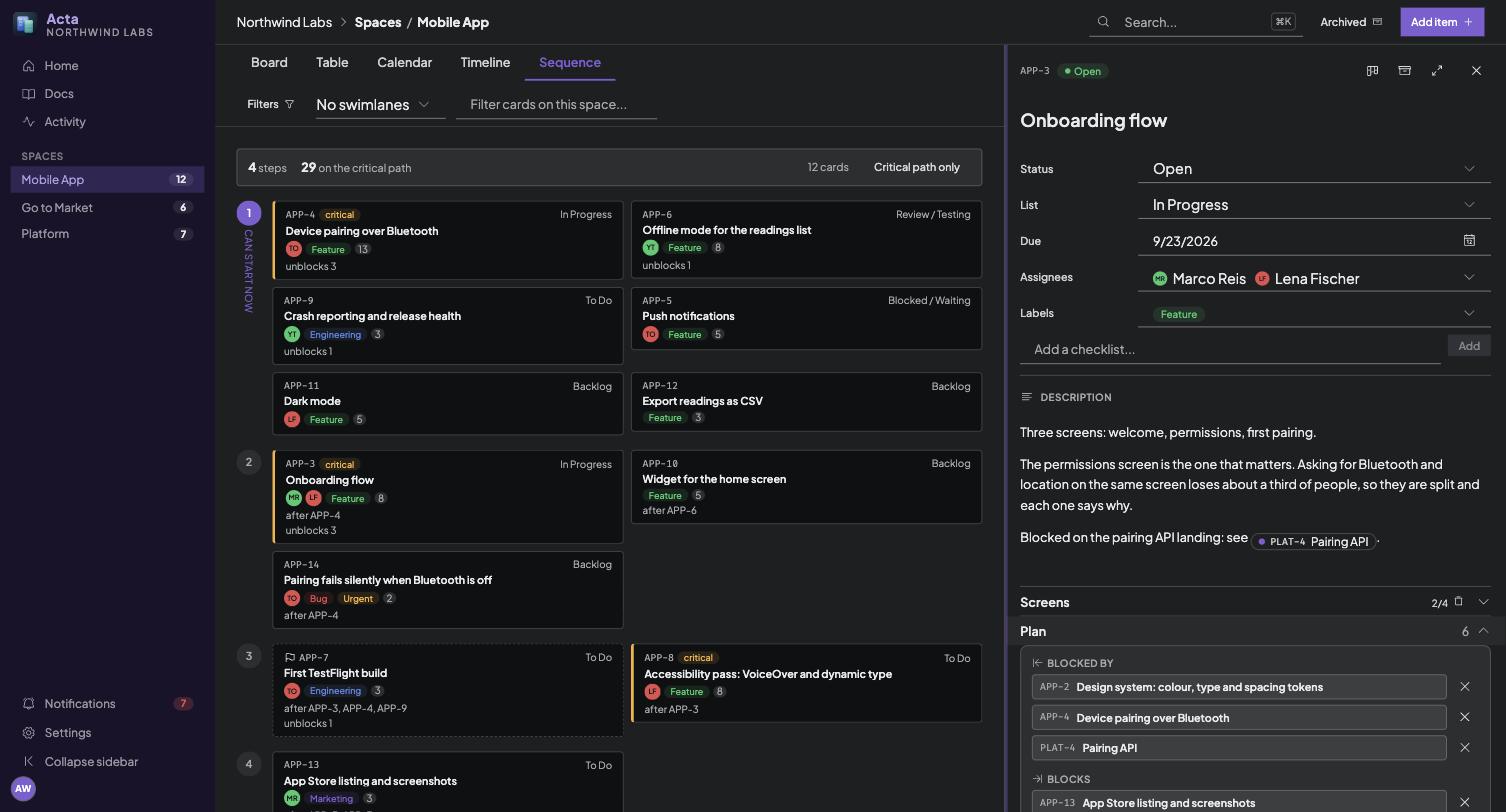
The Plan section is where a card takes its place in the sequence:
- Blocked by and Blocks: pick a relation, pick a card. Cycles are refused, with the two cards named.
- Size: a unitless estimate. It feeds the critical path. A card with no size counts as 1.
- Milestone: marks a card as a point worth reaching.
Comments
@handle or [[@handle]] notifies that member. [[ENG-142]] links to a card, [[doc:manual/vision]] to a document. References are extracted on save, so the target knows it was mentioned.
Documents
A tree of Markdown pages in the left rail. A page is a live document: it opens with the cursor in it, and what you type is saved a second after you stop, when you leave the page, and on Cmd/Ctrl+S. The row under the title says Saved, Saving, or Not saved with the reason and a Try again.
Writing in a page
- Nothing of yours is ever overwritten. Every save is checked against the version you read. If the page changed somewhere else while you were writing (an agent appending, a colleague in another tab), a notice offers Keep mine, Compare (the two side by side) or Use the other version. When nothing of yours is unsaved, the newer version simply appears.
- Only what you edit is rewritten. The editor keeps every line you did not touch exactly as it was, so a page an agent wrote with
*bullets keeps them, and==highlighted==text and HTML comments survive an edit of their own line. - The title is the page's name. Click it to rename the page. Its address and every link to it stay as they were.
- Properties are the page's frontmatter, shown as fields above the text: text, numbers, dates, checkboxes, lists and
tagsas chips. Editing one rewrites only that line. The{ }button under the title adds one to a page that has none. Something the editor cannot write back faithfully (a nested map, block text) is shown as written and left alone. - The Markdown of a page is one keystroke away:
Cmd/Ctrl+E, or the<>button, shows it as plain text, for anything the editor cannot show. The same again brings the document back. - Find in the page with
Cmd/Ctrl+F: every match is marked, Enter steps to the next, Shift+Enter to the one before, Escape leaves the cursor on it. - History. Saves by one person within ten minutes are one version, so an afternoon's writing is one row, not a thousand. Open Version history to read or restore an old one. Choosing Keep mine after a clash, or restoring an old version, always makes a version of its own, so the text it replaces stays in the history, even when it was yours from another tab.
Connections, under the page
- Referenced by: the cards, pages and comments that link here.
- Links to: what this page references. A page that nobody has written yet is marked, and a click creates it. The same happens when a link brings you to an address with no page: Acta offers to create it.
- Unlinked mentions: other pages that name this one in plain words (its title, or an alias from its properties) without linking. Link turns the words into a reference, keeping them as they were written.
The tree
The + makes a page, the magnifying glass searches every page and shows the matching lines (a line opens the page at that match), the sort button orders the tree by name or by when pages changed (dragging works in the arranged order only), and the arrows expand or collapse every branch. The command palette (Cmd/Ctrl+K) lists the pages you opened lately, finds any page by name, and offers New document "..." when none has the name you typed.
Who can see a page
Every page has an owner, shown under its title next to the word count, and is either Private (only the owner sees it) or Shared (every member of the workspace sees it). Nobody outside the workspace can see a page either way.
- A new page starts private. After its first save, at the first pause, Acta asks whether to share it with the workspace or keep it private. Either answer is final until you change it.
- Change it any time from the Private or Shared button under the title. Only the owner can, and admins cannot see other people's private pages.
- Pages follow the page they sit in. A page inside a private page is private with it and cannot be shared on its own. Sharing a page shares the pages under it. A page cannot be made private while someone else owns a page under it, and nobody can move someone else's page into a private one.
- A private page is invisible to everyone else, not just closed: it is not in their tree, their search, the activity feed or a card's links, and its events never reach a webhook or Slack. Your private pages carry a lock in the tree.
- Mentions wait. Somebody named in a private page is told when it is shared, which is the first moment they can open it.
- Pages that existed before this belong to whoever wrote their first version, and stay shared. Pages written by an agent, an import or a script with a personal token are shared, and belong to the person they work for.
Reorganise the tree by dragging. Drop a page on the middle of another page to put it inside, as the last subpage. Drop it on the top or bottom edge of a page to put it just before or after that page, at the same level. Dropping beside a top-level page, or on the "Drop here to move to the top level" area that appears under the tree while you drag, makes it a top-level page. A page always moves with all of its subpages, and a page cannot be dropped inside itself or its own subpages, so no drop marker appears there.
From the keyboard, open a page and use Move page (the arrow button next to the page actions, or the command palette) to pick its new parent or the top level. You need write access for either. Read-only members see the tree as it is.
Moving a page never changes its address. A page keeps its slug wherever it goes, so its URL, every [[doc:...]] reference and every heading or block link to it keep working. That means a slug such as home/manual/icon-system may no longer spell out where the page now lives. That is deliberate: links that survive a reorganisation matter more than a tidy path.
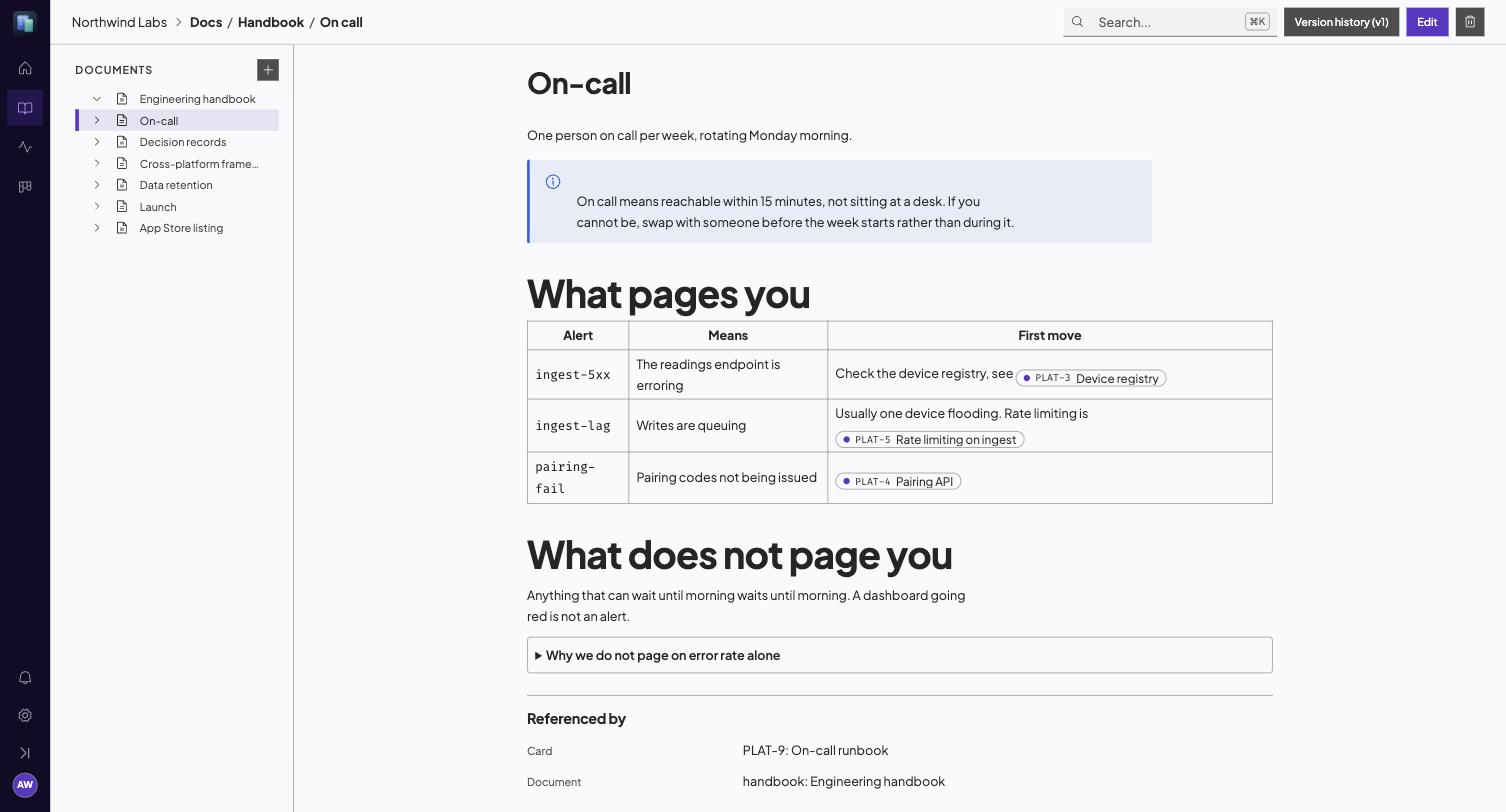
On top of CommonMark and GFM:
md
> [!TIP]
> Callouts, in the GitHub style. Obsidian's keywords (SUCCESS, QUESTION,
> BUG, EXAMPLE and the rest) are accepted too.

Prose with ==a highlight== in it. <!-- A comment: kept, never shown. -->

:::details Click to expand

Collapsible content, including lists, code and another toggle.

:::

See [[ENG-142]] and [[doc:manual/vision|the vision]].

![[query: space=ENG list="In Progress"]]
The last one is a live embed: the matching cards render in the page and stay current. It is how a status page stops being a lie a week after it was written.
Maths and diagrams
Formulas are LaTeX, and diagrams are Mermaid. Both render in the page and in the editor.
md
The identity $e^{i\pi} + 1 = 0$, inline.

$$
\int_0^1 x^2 \, dx = \frac{1}{3}
$$

```mermaid
graph TD;
  Draft-->Review;
  Review-->Published;
```
Click a formula to edit its source, click away to see it drawn. For a diagram, put the caret in the block to get the source back. Something that will not parse shows the error where the drawing would be, so a typo is visible and fixable rather than a gap in the page.
Inline maths is deliberately strict about what counts as a formula, so ordinary prose is left alone: $5 and $10, $PATH and anything inside backticks or a fenced block are never read as maths. A single dollar you want kept literal can be written \$.
Link previews
A URL on a line of its own becomes a card: the page's icon, title, description, site and picture. A URL inside a sentence stays an ordinary link, because that is where you meant it to read as one.
md
Worth reading:

https://example.com/the-article
Nothing is added to the document. What is stored is still the plain URL, so a page written before this existed already shows its cards, and a page exported somewhere else is unaffected.
The metadata is read by the server, not by your browser, and kept for a day, so a page of twenty links opens in one request. Acta only fetches public addresses: an intranet or localhost URL is refused, and so is any name that resolves to a private address. When there is nothing to show, for that reason or because the site publishes no metadata, the link simply stays a link.
Blocks
While editing, the margin beside each block (a paragraph, a list, a table, a callout) shows a + and a grip:
+opens the insert menu for a new block below. Nothing is added until you pick something, so closing the menu leaves the page as it was.- Drag the grip to move the block. From the keyboard, focus the grip, press
Spaceto pick the block up, the arrow keys to move it, andSpaceagain to drop it.Escapeputs it back. - Click the grip, or press
Enteron it, for its actions: turn it into another kind of block, duplicate it, copy a link to it, or delete it.
The grip acts on whole blocks at the top of the page. A list moves as one list, not item by item. Turn into only offers what keeps your words, and says so when a change drops formatting or clears ticked tasks.
Copy link to block gives you a link that scrolls straight to that block and marks it for a moment. It finds the block by its text, so it keeps working after the page is edited around it. If the block has since been removed, the page opens at the top and tells you. Nothing about the link is stored in the page itself.
Label groups that behave like fields
A label group can do two more things, and together they cover most of what people reach for custom fields to do.
One value per card. A group can be set so a card carries at most one of its labels. "Fixes version" is one release. "Affects version" is several, which is the default and what every group did before. Picking a second value in a one-value group replaces the first rather than being refused, because picking again means you changed your mind.
Turning it on does not go back and prune cards that already carry several. The next time you edit one, it settles.
An order of your own. Labels in a group can be arranged, which matters the moment the values are not alphabetical: 1.9.0 comes before 1.11.0, and sorting by name puts it last. A group you have not arranged stays in alphabetical order, and a label you have not placed in an arranged group sits at the end.
Because a group is scoped to a space, a software board can carry "Affects version" and "Fixes version" while a marketing board never sees them. Two groups can hold the same values, which versions do constantly, so where you need to be precise a label is written as Group/Name, as in Fixes version/1.12.0.
Parts of a card
A card can be part of another card. Open the parent and it lists its Parts, open a part and it says what it is Part of. On a board a card names what it is part of in its header, and its footer counts how many of its parts are done.
Anything can be part of anything, at any depth, and a part can live on a different board from its parent, which is the point: the work to ship something is rarely all on one board. The only thing Acta refuses is a loop, because a card that contains itself can never be reached from a board again.
There are no card types. Acta has no epics, stories or tasks: a card is a card, and how you use the nesting is up to you. What a card is stays a matter for its labels.
This is not the same as "waits on". A dependency says what has to happen first. Being part of something says where the work belongs. A card often does both, and either without the other is perfectly ordinary.
Detaching a part never deletes it, and deleting a parent never deletes its parts: they simply stand on their own again.
On a board you can drag a card onto another to make it part of it. The middle of a card nests, its top and bottom edges still move the card to that position, and the two look different on purpose: an insertion point is a line in the gap the card would land in, and a nest target is the whole card, filled and ringed. By keyboard, pick the card up with Space, arrow to the card you mean, and hold Shift while you drop.
Dragging only works inside one board, which is why the Parts panel is the main route: it searches every board, and a part on another board can only be added that way.
Search
Cmd/Ctrl + K anywhere. It covers card titles and descriptions, comments and documents in one index, and it is also how you jump to a card by key.
Notifications
The bell shows what you were mentioned in, assigned to, or are involved in. Involvement means you commented on the card or the page, or are assigned to the card. Creating a card on its own does not make you involved in it.
You hear about it when somebody names you with @handle or [[@handle]], in a card's description, in a comment, in the body of a document, or in a goal's description or check-in. Case does not matter, and an email address or text in code is never read as a name. You hear about a card being handed to you and about one being taken away again. You hear about the conversation on a card or a page you have already taken part in, about a card of yours being edited, moved, finished, reopened or archived, about a card of yours becoming blocked or stopping being blocked, and about a due date a day before it arrives and again once it has passed. A goal tells its owner when it is handed to them, and its owner and followers about each check-in.
You never hear about your own actions, and you are not told twice for the same thing. Editing a comment that already named three people does not ring for them again, only for anybody you have just added. Assigning somebody who already holds a card tells nobody anything.
An agent's writes reach people exactly as yours do. Only people are told: naming an agent or assigning it a card writes nothing to an inbox, because an agent does not have one.
Being chased
If a notification sits unread for a while, Acta emails you the ones you have missed. It is one message covering everything, never one per notification, and repeats of the same thing are folded into a line with a count.
Opening the bell is what stops it. A morning spent in Acta never produces an email at all, which is the point: the email is what happens when you were not looking.
Choose the window, or turn it off, under Settings → Notifications. Ten minutes is the default. The same page is where you allow desktop notifications, which arrive while Acta is open in a tab: usually the moment something happens, and within a minute at most. Clicking one opens the thing and marks it read, as the bell does. Browsers only accept that request from a real click, so Acta has to ask.
Changing a comment after you posted it
The ellipsis beside a comment offers Edit and Delete, the way Jira and Trello do.
Only the author can edit, including when the author is not you and you are an admin. A comment carries the writer's name and face, so being able to rewrite somebody else's would be putting words in their mouth. An edited comment is marked (edited), with the time it happened.
Deleting is different, because moderating a thread is a real need. You can always delete your own, an admin can always delete any, and a workspace that would rather nothing disappeared can reserve deleting to admins entirely under Settings -> Workspace.
Settings
Six sections, grouped by what you are trying to do.
People is who can sign in. Only people can be assigned work or mentioned.
Labels is the vocabulary your cards are filed under. A label lives in a group, and a group belongs either to one space or to the whole workspace, so a board can have its own vocabulary without imposing it on every other board. Here are the groups every space shares. A space's own groups are in that space's Settings, and this tab lists the spaces that have some, with a link to each.
Automation is everything that happens without a person. Here is what runs across every space: webhooks post events out to your systems, rules not narrowed to one space are Acta reacting to itself, and agent tokens are credentials for a script that acts under its own name. What files cards into one space (its ingest endpoints, an endpoint and a token that a website form posts to, its connections, which let a provider like GitHub push signed events in, and its rules) is in that space's Settings, and this tab lists the spaces that have any.
Workspace is policy that applies to everybody, and only an admin sees it. Today that is whether people may delete their own comments, or whether deleting is reserved to admins.
Notifications is how much Acta chases you: the window before an unread notification turns into an email, or never, and whether this browser may show desktop notifications.
Your account is the other one every member has, administrator or not. It holds your own access tokens, which let a tool act as you rather than as a bot, and your connected applications, which is where you disconnect something like Claude that you signed in through.
The distinction worth holding on to is whose name ends up in the history. An access token is you. An agent token, an ingest endpoint and a connection are each their own identity, which is why a card raised by your contact form says it came from the contact form rather than from whoever set it up.
Walkthroughs
Acta has three short walkthroughs, and each plays once, the first time you reach what it explains: getting around Acta when you first sign in, goals the first time you open them, and notifications the first time you close the notifications panel. The notifications one ends in Settings → Notifications, on the button that allows desktop notifications on this device.
Settings → Walkthroughs lists them with whether you have seen, skipped or not yet met each one. Reset makes one play again the next time that moment comes round, and Play now starts it straight away. What you have seen is remembered on your account, so a second browser does not replay it.